DocuWare Partner Onboarding
This content hub will support you with onboarding in natif.ai and provide you with all the important explanations, information and tutorials.
Realm Overview
As a DocuWare Reseller, understanding our Multi-Organization-System is crucial. You can find all informations as well as the set-up of your realm here:
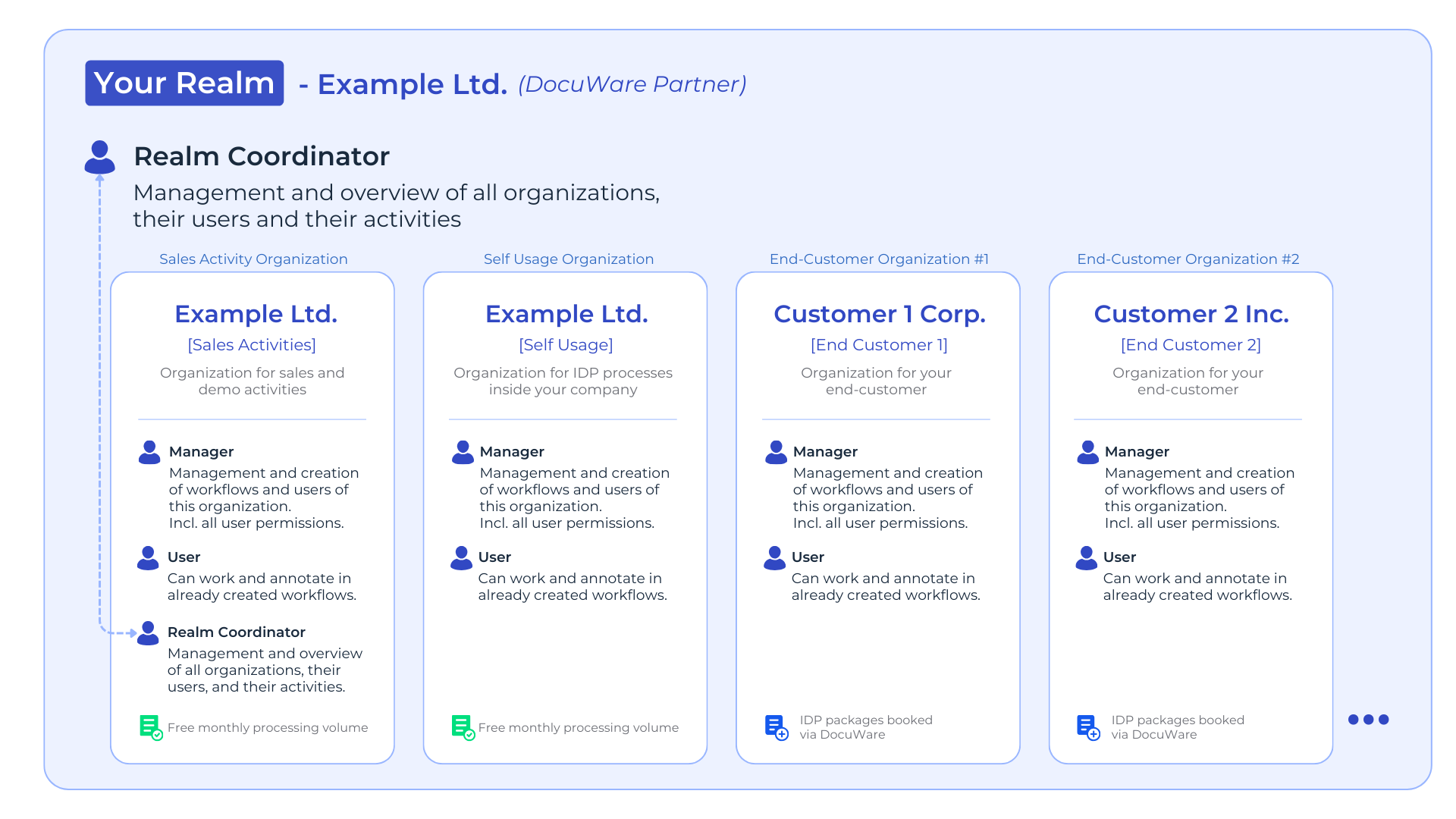
You can find an overview of your Realm including the different user roles in the following graphic:
Realm:
Your Realm is your place to manage all your customers and their users as well as inspect their meta-data, configurations and processing usage tracking.
We’ve created a dedicated Realm for your company, providing an isolated environment for you and your end customers.
Realm Coordinator:
Your account is a user with the ‘Realm Coordinator’ role, this enables you comprehensive Realm management. You should have received an email with an activation link. Once you set your password, sign in to access the interface of the Realm Coordinator.
Please note that the ‘Realm Coordinator’ role is for management purposes only and cannot train AI models or process files. Instead, use it to create “Manager” roles within your Organizations, allowing them to automate processes as detailed in the tutorials below.
You can easily create multiple accounts for one email address by adding a plus sign.
Example:
– max.mustermann@abc.com
– max.mustermann+company@abc.com
– max.mustermann+100@abc.com
Sales Activities Organization:
Within your Realm, you will find the “Sales Activities Organization” – which is your main Organization. In this organization, you should conduct your demo and sales activities. There is sufficient quota for all demonstrations and set up activities.
Self Usage Organization:
The “Self Usage Organization” serves to automate your own company’s document processes. Processing within this Organization is free, allowing you to gain hands-on experience with natif.ai. Your processing quota in this organization depends on your DocuWare cloud package.
Your Realm is your place to manage all your customers and their users as well as inspect their meta-data, configurations and processing usage tracking.
We’ve created a dedicated Realm for your company, providing an isolated environment for you and your end customers.
Realm Coordinator:
Your account is a user with the ‘Realm Coordinator’ role, this enables you comprehensive Realm management. You should have received an email with an activation link. Once you set your password, sign in to access the interface of the Realm Coordinator.
Please note that the ‘Realm Coordinator’ role is for management purposes only and cannot train AI models or process files. Instead, use it to create “Manager” roles within your Organizations, allowing them to automate processes as detailed in the tutorials below.
You can easily create multiple accounts for one email address by adding a plus sign.
Example:
– max.mustermann@abc.com
– max.mustermann+company@abc.com
– max.mustermann+100@abc.com
Sales Activities Organization:
Within your Realm, you will find the “Sales Activities Organization” – which is your main Organization. In this organization, you should conduct your demo and sales activities. There is sufficient quota for all demonstrations and set up activities.
Self Usage Organization:
The “Self Usage Organization” serves to automate your own company’s document processes. Processing within this Organization is free, allowing you to gain hands-on experience with natif.ai. Your processing quota in this organization depends on your DocuWare cloud package.
Getting Started With natif.ai
To get started with natif.ai, please follow these steps:
1. Email Confirmation
Confirm your email address in the mail you got – and log in.
2. User Set-up
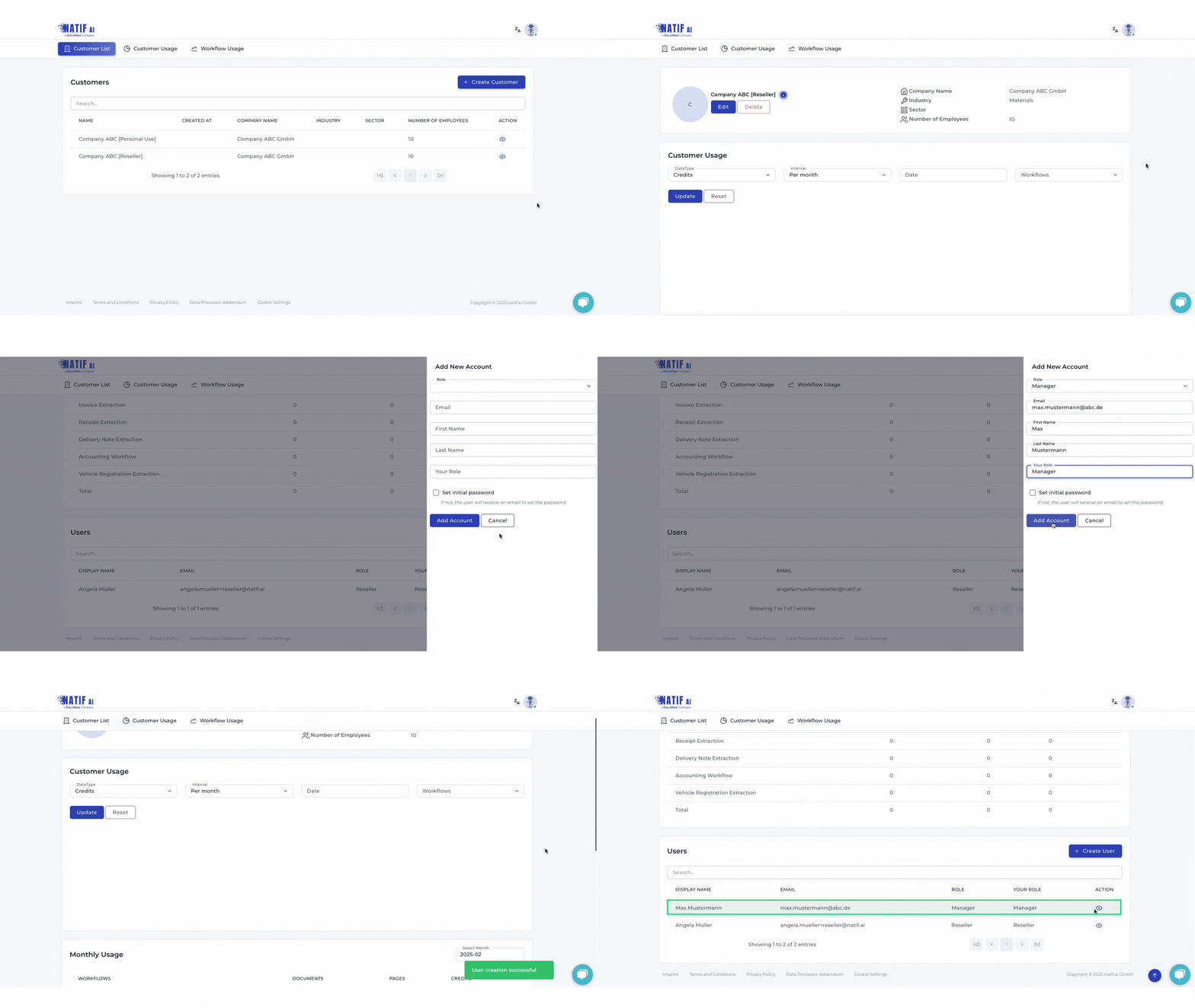
Set up your colleagues as Managers (in your Sales Activity Organization) and set up your own Manager account if needed.
You can find the steps on how to set-up a User in the video below.
Create an additional Realm Coordinator account if you need someone to manage the realm and invite people. Create a Manager account for your colleagues if they need to set up workflows, train models and do demos.
3. Start Creating Workflows
Use a Manager account in your Sales Activities Organization to create a workflow.
Hint: We’ve provided sufficient quota for demonstrations and set up activities
1. Email Confirmation
Confirm your email address in the mail you got – and log in.
2. User Set-up
Set up your colleagues as Managers (in your Sales Activity Organization) and set up your own Manager account if needed.
You can find the steps on how to set-up a User in the video below.
Create an additional Realm Coordinator account if you need someone to manage the realm and invite people. Create a Manager account for your colleagues if they need to set up workflows, train models and do demos.
3. Start Creating Workflows
Use a Manager account in your Sales Activities Organization to create a workflow.
Hint: We’ve provided sufficient quota for demonstrations and set up activities
Selling natif.ai
Once one of your customers is ready to make a purchase, use your DocuWare partner portal or booking contact to purchase a natif.ai IDP package with the required quota. After we receive the booking confirmation from DocuWare, we will create a new Organization for your customer within your Realm.
Additional Information
Integration with DocuWare:
All information about the integration with DocuWare via Make.com can be found here.
Creating API Keys:
Create a Manager account in the Organization to generate an API Key, enabling workflow integration with DocuWare or other tools like Make.com.
Tutorials & Educational Material:
You can find all information about the usage of our platform and how to create custom AI models in our tutorial videos and step-by-step guides.
All information about the integration with DocuWare via Make.com can be found here.
Creating API Keys:
Create a Manager account in the Organization to generate an API Key, enabling workflow integration with DocuWare or other tools like Make.com.
Tutorials & Educational Material:
You can find all information about the usage of our platform and how to create custom AI models in our tutorial videos and step-by-step guides.
Custom Splitting
Custom Classification
Custom Extraction
Fine-tuned Extraction
Note: If you have any questions or need further assistance, please contact DocuWare Support.